SFTP
Learn about syncing users with an SFTP connection
To set up an SFTP (Secure File Transfer Protocol) directory sync connection, you’ll need to provide the organization’s IT team with specific configuration details from WorkOS. This allows them to upload CSV files containing user and group information via SFTP.
WorkOS maintains a receiving SFTP server that the organization’s HRIS provider or SFTP client can connect to.
If the organization’s HRIS has a built-in SFTP client, SFTP will allow them to automatically sync their data and ensure their data is always up to date. An SFTP integration allows for provider-agnostic ingestion of employee data into your product ecosystem.
Once the integration is set up, WorkOS automatically creates and hosts an SFTP folder for the organization’s HRIS provider to upload files at a regular cadence.
An SFTP integration has the following advantages:
- Works with any system that has the ability to export CSVs
- Has an easy integration path for an organization comfortable working with CSVs and SFTP
- Allows a custom cadence of updates for your customer
Your application interfaces with an SFTP directory the same as with other directories; receiving events when the directory is created or updated:
When setting up an SFTP directory sync connection, WorkOS provides two key pieces of information that you’ll need to share with the organization:
- SFTP Server URL: The location where the organization will upload user and group CSV files
- Username: Authentication credentials for SFTP access
These are available in your directory’s settings in the WorkOS Dashboard once the connection is configured.
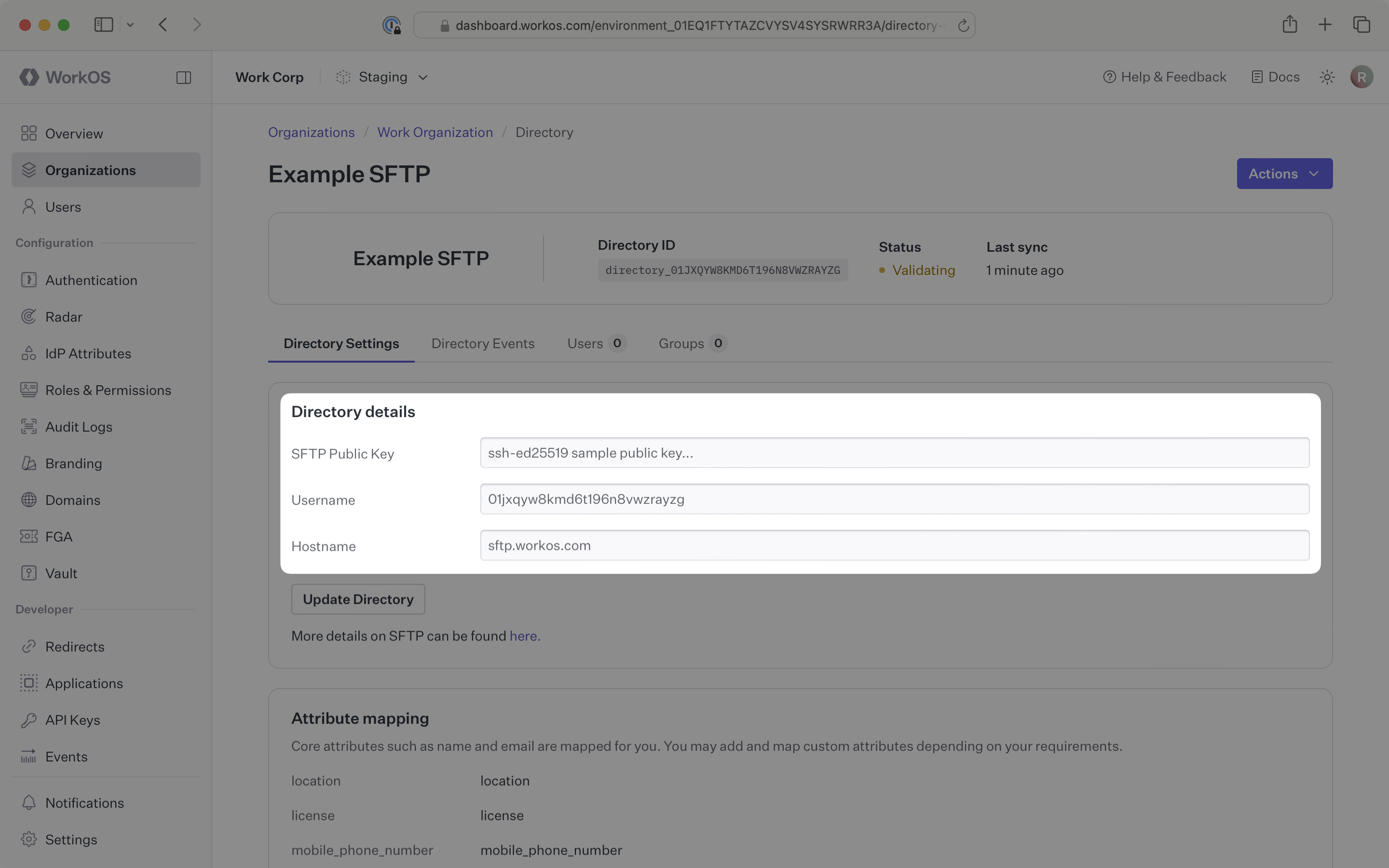
The SFTP server uses public key authentication, providing secure file transfer capabilities for user and group data synchronization.
The organization will need to provide a public key for authentication and prepare their user and group data in the required CSV format.
You will need to obtain from the organization:
- Public Key: For SFTP authentication (maximum key length is 2048 bytes; supported keys are:
ED25519,RSA, andECDSA)
The organization will need to export their users and groups as CSV files with the structure below.
Login to the WorkOS Dashboard.
In the left navigation menu, select the Organizations tab. Select the appropriate organization for which you will enable a SFTP directory sync connection.
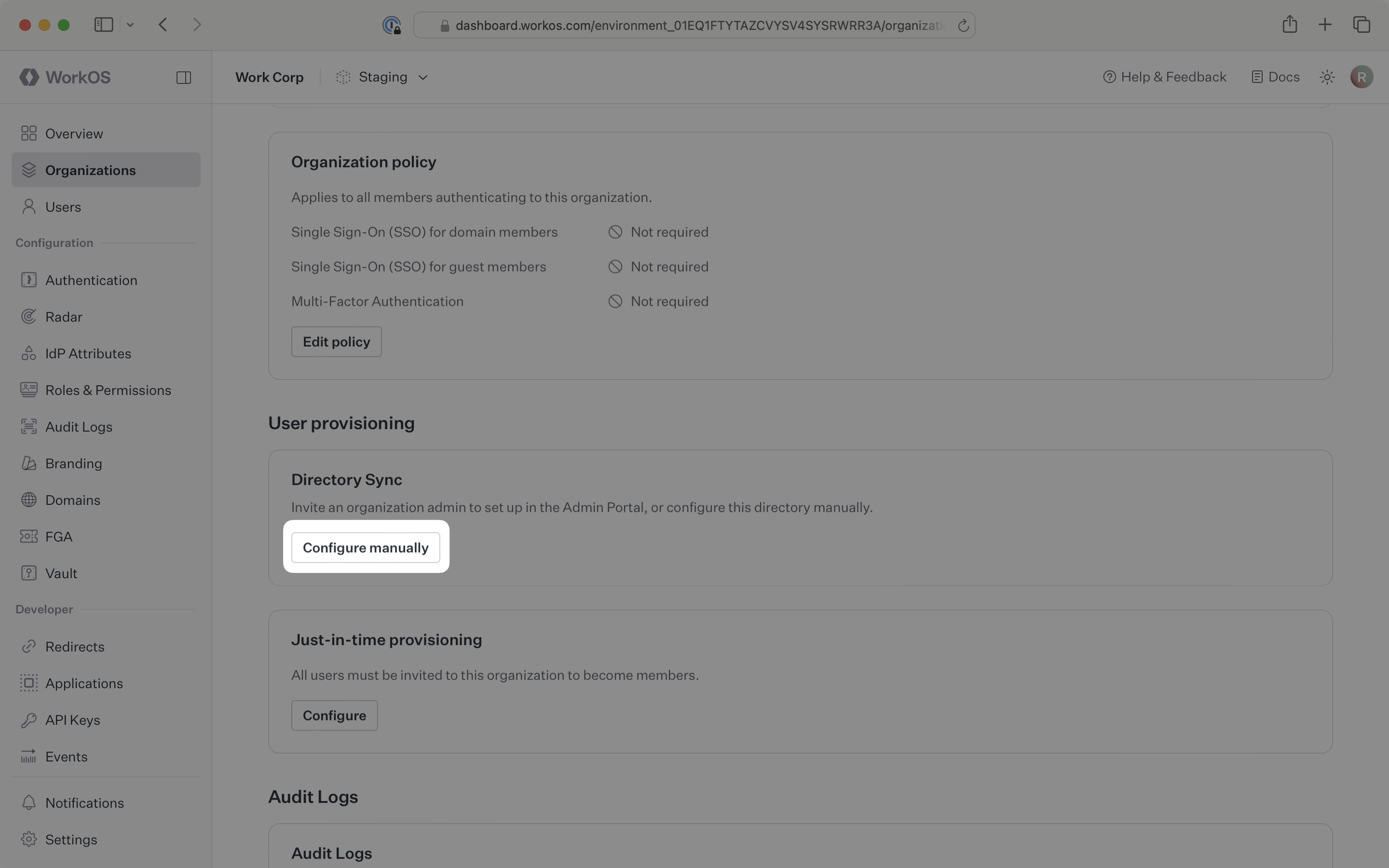
On the organization’s page, scroll down to the Directory Sync section. Click Configure manually.
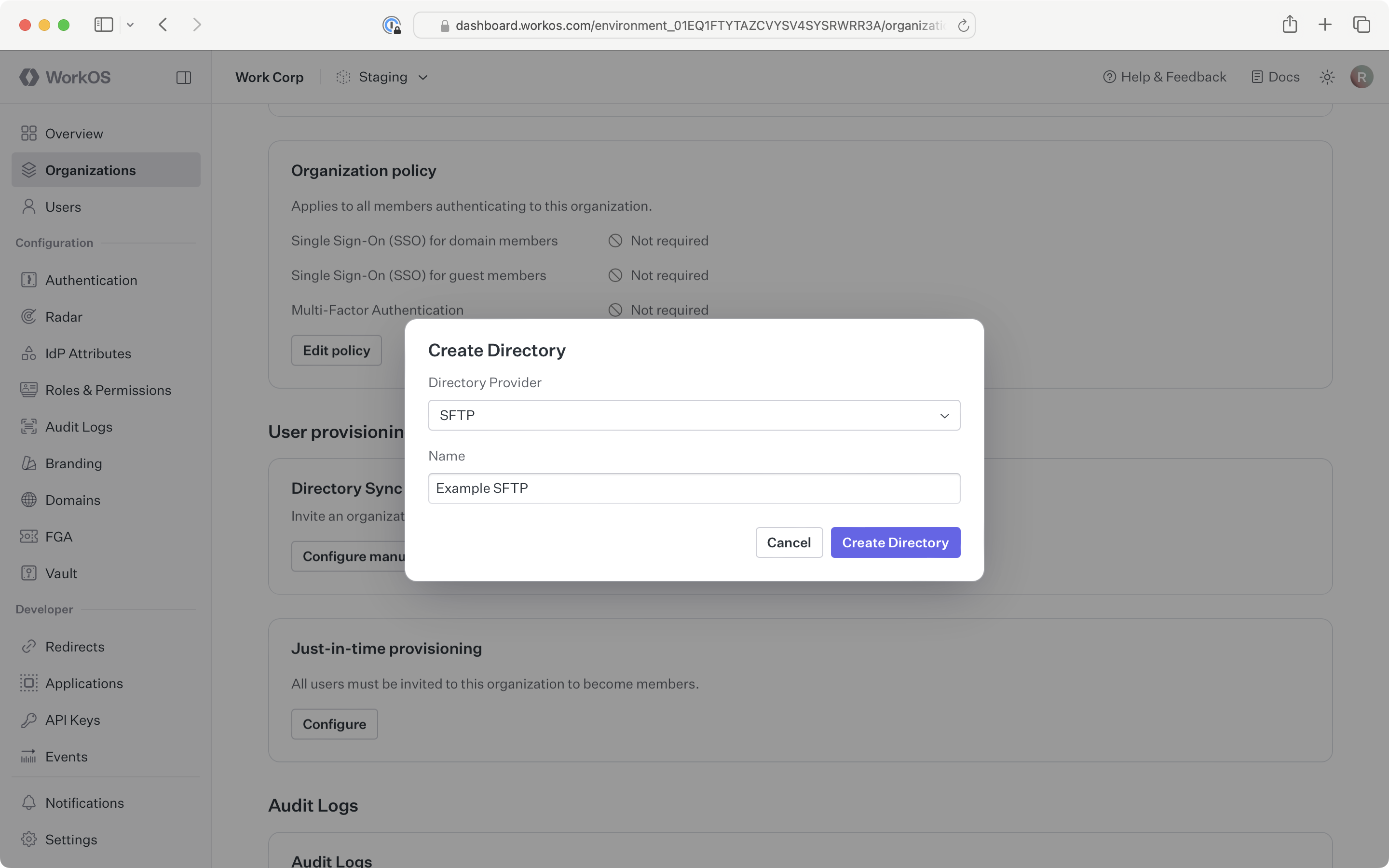
Select SFTP as the directory type. Input an appropriate name for the connection. Click Create Directory.
Obtain the public key from the organization’s admin that will be used for SFTP authentication.
From the directory page in the WorkOS Dashboard, in the Directory details section click the Update Directory button.
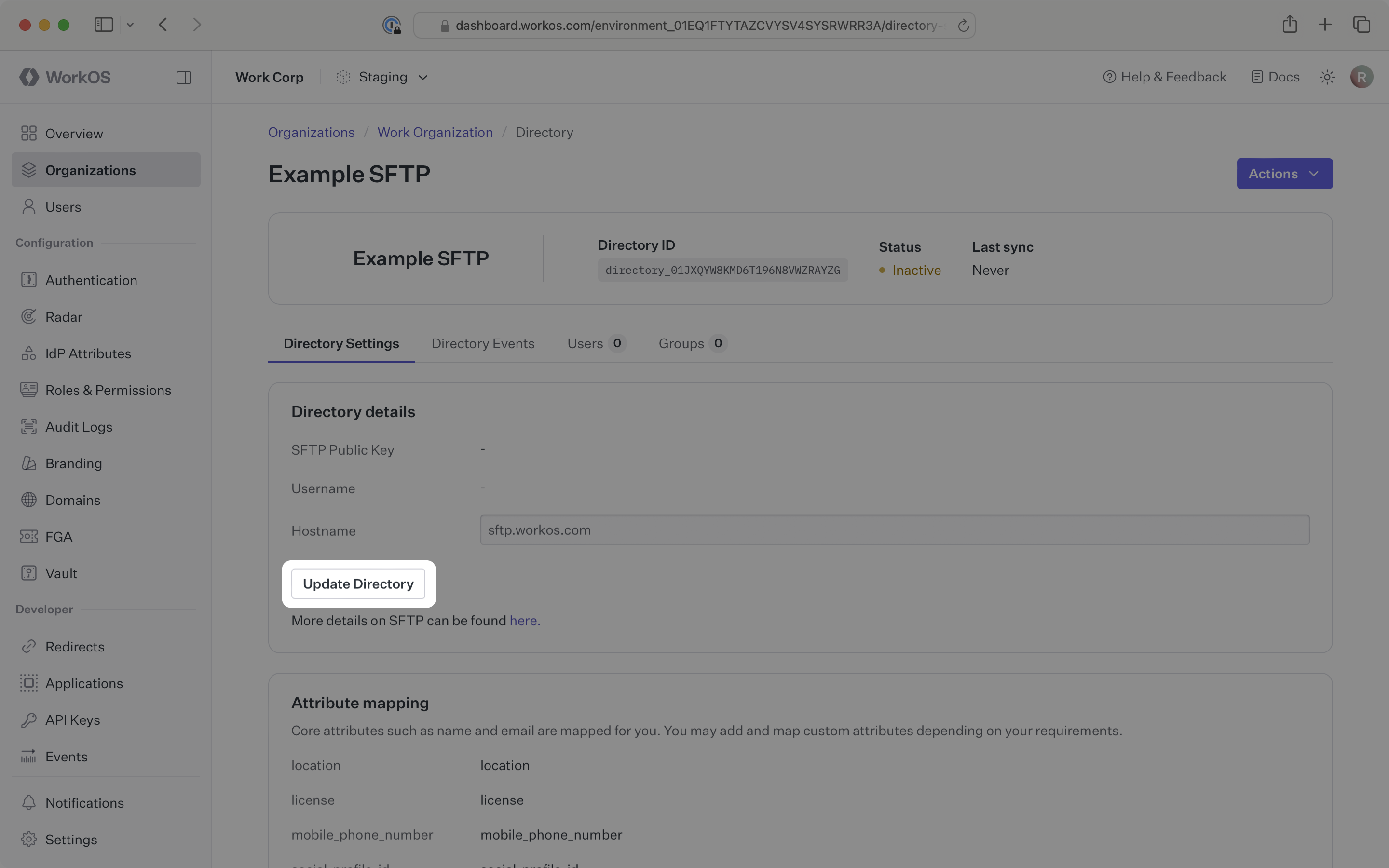
Paste the organization’s public key into the input field.
The SSH public key format should include the key type (e.g. ssh-rsa, ssh-ed25519), base64 encoded body, and an optional comment, with spaces between each element. For example, ssh-rsa AAAABB1 keycomment.
RSA, ECDSA, and ED25519 keys are accepted:
- For RSA keys, the key type is
ssh-rsa. - For ED25519 keys, the key type is
ssh-ed25519. - For ECDSA keys, the key type is either
ecdsa-sha2-nistp256,ecdsa-sha2-nistp384, orecdsa-sha2-nistp521, depending on the size of the key generated.
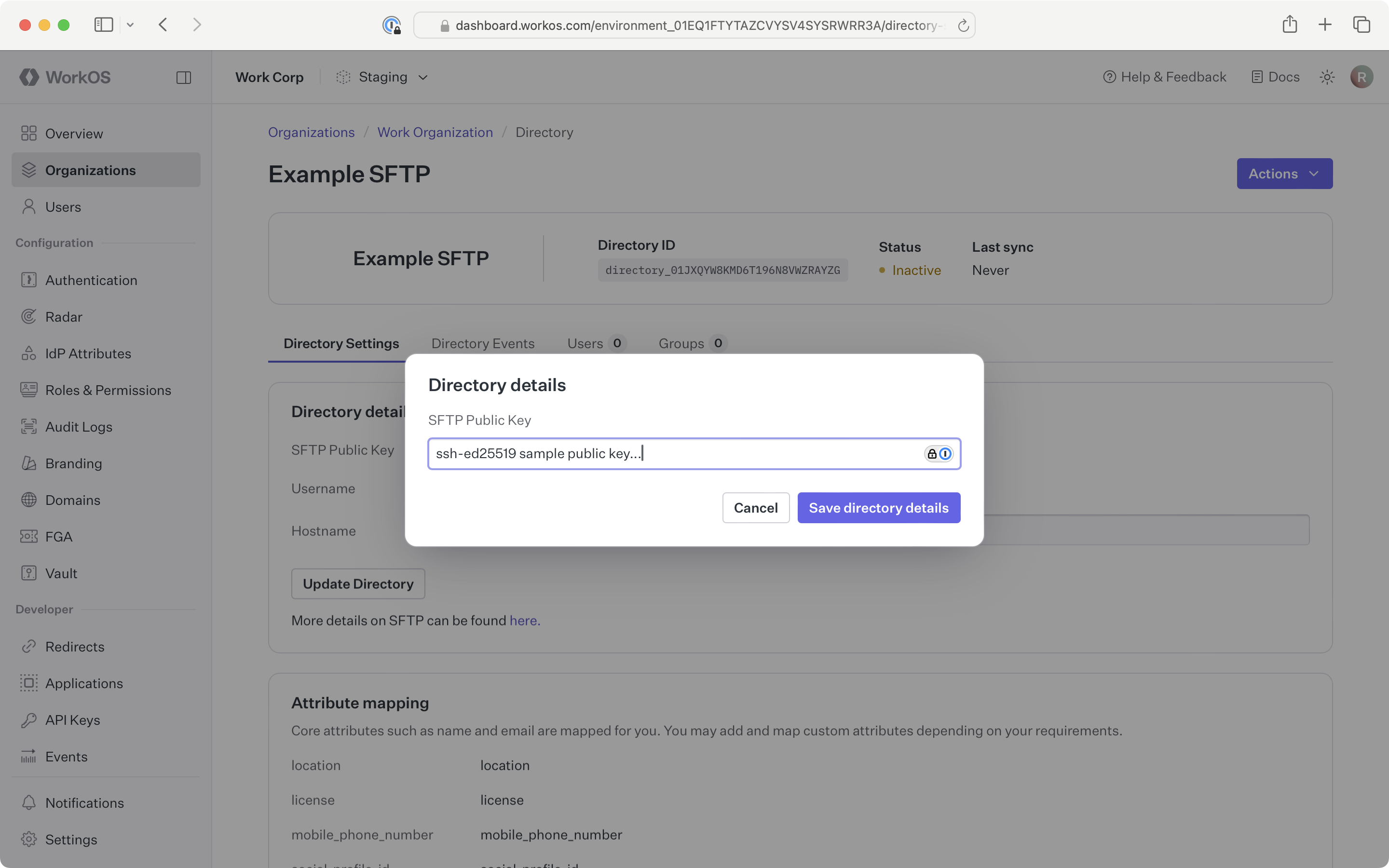
After adding the public key, WorkOS generates a username. You will see the green Linked icon appear.
Copy the Username and SFTP server URL from the WorkOS Dashboard.
Share these values with the organization so they can configure their SFTP client:
- SFTP Server:
sftp.workos.com - Username: The generated username from the WorkOS Dashboard
- Authentication: Their private key (corresponding to the public key you uploaded)
Instruct the organization to upload their CSV files using these credentials.
Now, whenever your customer uploads updated CSV files via SFTP, you’ll receive updates based on the changes in their directory data.
The Users tab within the SFTP connection displays synced users.
A detailed guide to integrate the WorkOS API with your application can be found here
How is my organization’s data protected in transit?
SFTP uses SSH (Secure Shell protocol) to symmetrically encrypt traffic after an asymmetric key negotiation for authentication.
Our solution leverages the AWS Transfer Family, so that we can support a common, secure protocol (SSH) with modern, isolated data storage (AWS S3).
We leverage the default security policy (security-policy-transfer-2020-06) for the choice of SSH cipher-suites, which determines the strength of cryptographic protection for data in transit.
How is my organization’s data protected at rest?
As the data is stored in an AWS S3 bucket the default (since January 2023) is that it is encrypted at rest (SSE-S3). The symmetric encryption used is AES-256, more information is available in the FAQ.
How does WorkOS isolate one of my organization’s data from the other?
Each of the organizations you onboard will create an SSH key pair, this consists of a public key, and a private key. They will retain the private key, ensuring that only they can authenticate. The public key uploaded to WorkOS will be used to authenticate the organization’s connection via SFTP.
Each of your organizations is mapped to a distinct S3 bucket based on an internal (cryptographically random) identifier for the SSH key pair.
When does WorkOS dispose of the data and how is this done?
In either of the following events your organization’s data, and the S3 bucket will be deleted:
- You off-board the organization from your product/service.
- You no longer use the WorkOS Directory Sync service.